Most construction firms already use accounting software. The problem isn’t bookkeeping. It’s getting accurate field data into that software without re-entering it by hand.
Most construction expense management tools only solve one side of that problem. They handle vendor invoices and receipts well, but field labor hours are a different challenge entirely. Those hours need to reach accounting with the right job number and cost code attached. When they don’t, cost reports are wrong. Bids built from those reports are wrong, too.
Generic expense apps weren’t built for field crews punching in across multiple job sites. They were built for office staff processing paperwork. That’s a meaningful difference, and most contractors don’t discover it until a job has already gone over budget.
The eight tools in this article cover both sides.
Top Tools for Construction Expense and Profit Management at a glance
| Tool | Cost Code Allocation | Accounting Sync | Mobile Capture | Best For | Starting Price |
| Workyard | Auto-allocated at clock-in. | Direct sync, no re-entry. | GPS clock-in from jobsite. | GPS-verified labor hours and job costing | $6/user/mo + $50 base fee |
| Dext | Feeds the general ledger, not job cost codes | QuickBooks, Xero, Sage | Photo capture at point of purchase | Material receipts and subcontractor documents | $31.50/mo (5 users, 250 docs) |
| Miter | Job and cost code level. | NetSuite, Acumatica, Sage Intacct, QuickBooks | Mobile time entry | Integrated construction payroll and job costing | $15/user/mo |
| Buildertrend | Within job budgets. | Two-way, QuickBooks Online and Desktop | Mobile app, no GPS clock-in | Small GC budget tracking within PM | Quote-based (volume pricing) |
| Bill | No native job costing | QuickBooks, Xero, NetSuite, Sage Intacct, Microsoft Dynamics | No. Back-office only. | AP automation and vendor payments | $49/user/mo |
| Emburse | Project tagging only, not job cost coding | QuickBooks, NetSuite, Sage Intacct | Mobile receipt capture | Employee reimbursements and receipt capture | Quote-based |
| Autodesk Construction Cloud | Yes, project budget structure. | Sage, Viewpoint, JD Edwards | Mobile app available; cost management is PM-facing | Large GC project-level cost control | Quote-based |
| Beam | By project and cost code at point of purchase | QuickBooks Online only | Beam Card with receipt capture | Residential builders and trade contractors | Free (Core) / $250/month (Plus) |
Workyard: Best for Construction GPS Time Tracking
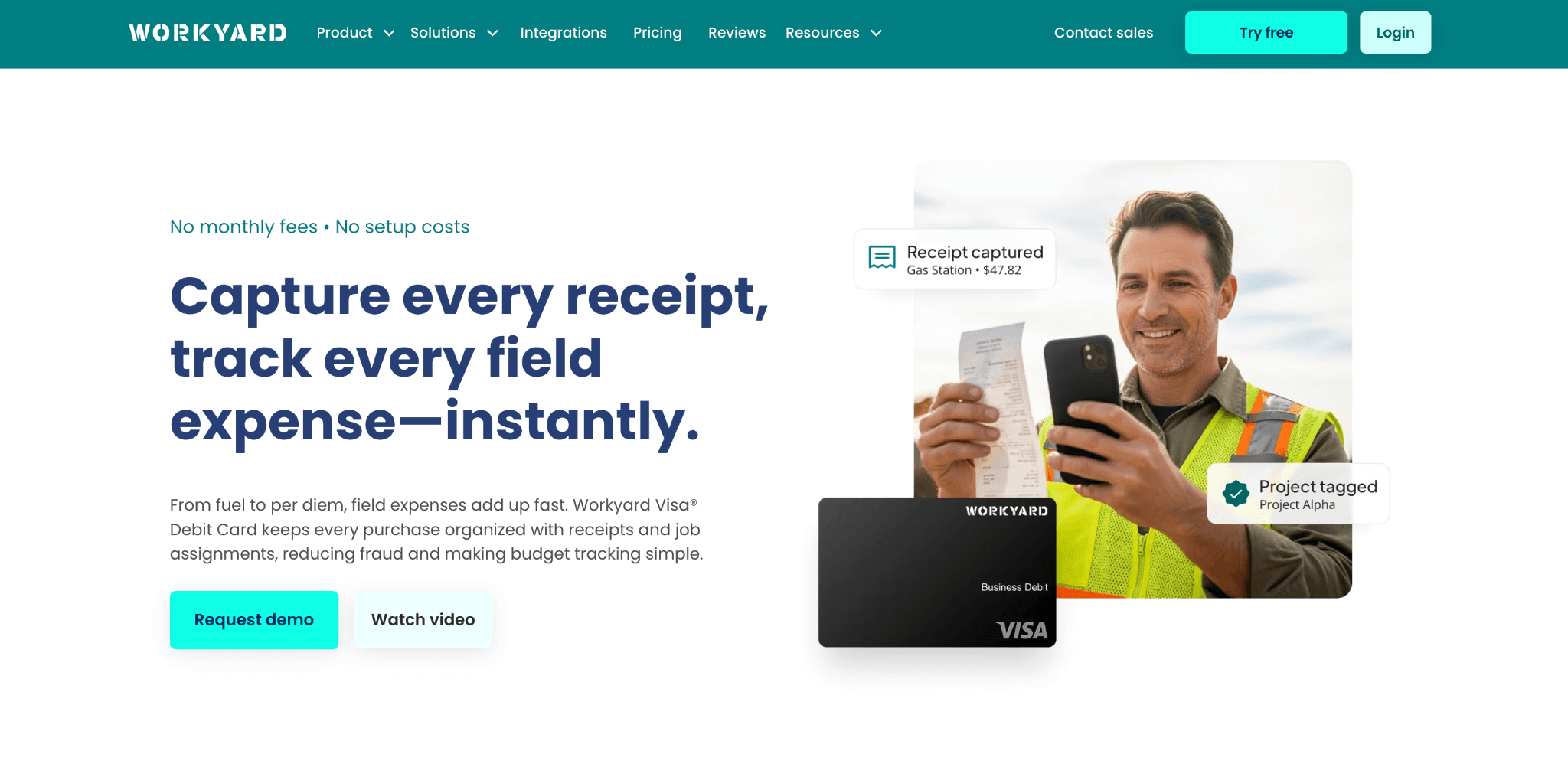
Workyard is a GPS time tracking platform built for construction contractors. Workers clock in from their phones; GPS logs their location and assigns hours to the right job and cost code.
Workyard integrates with QuickBooks, Sage, Foundation, and ComputerEase as a data feed, not a replacement for them. The hours that land in each system arrive with no re-entry step.
In conversations with construction teams, most expense tools address receipts and vendor invoices. Workyard covers the other side: the labor hours that most expense tools never touch.
According to Workyard’s analysis of 280 contractor discovery calls, 45% of construction businesses are still manually re-entering time data into payroll or accounting software, making double-entry one of the leading causes of job costing errors in the trades. Workyard is construction expense management software especially built for contractors.
What are Workyard’s key features?
- Cost code automation: Configurable rules fire at clock-in (e.g., an electrician clocking in at 847 Oak Street routes automatically to Job #38, Phase 04: Electrical Rough-In).
- T&M time separation: Drive time and on-site project time tracked as separate cost codes on T&M jobs.
- Supervisor dashboard: Real-time crew location and clock-in status across active jobsites.
How much does Workyard cost?
Workyard’s base plan runs $6/user/month with a $50 flat fee; Pro is $13/user/month with the same flat fee. Both plans include a 14-day free trial.
What are the pros and cons of Workyard?
Pros
- GPS-verified clock-in with automatic cost code allocation
- Direct QuickBooks and Sage sync without manual re-entry
- T&M travel time tracked as a distinct cost code
Cons
- Covers the GPS time tracking layer only; full accounting and financial reporting stay in the existing system
- Payroll processing and vendor invoices run through the existing downstream tools, not Workyard
Workyard is best for construction contractors who need GPS-verified labor hours flowing into their accounting system without manual re-entry. Contractors committed to managing construction expenses efficiently will find Workyard’s full approach on their product page.
One property management firm was tracking hours in Excel and Google Sheets. The data was inconsistent, and billing was done from incomplete records. There was no audit trail to support client invoices.
Their general manager described it directly: “We’ve improved leaps and bounds in the accuracy of our job costing analysis. We can present a complete bill to clients at the end of every 30-day period with an audit trail. Prior to Workyard, we didn’t have that supporting evidence.” Workyard auto-generates labor reports that feed directly into client invoices. Client reimbursements increased by over 30% year over year.
Another rapidly growing property management company was absorbing over $1,000 per month in payroll correction costs. Inaccurate time data caused errors that required hours to fix after every pay period.
Here’s how the company director described the shift:: “Workyard gave me a boost in confidence that I could identify issues and come up with a solution. I can now say that we haven’t had a payroll issue in 3 months.” QuickBooks integration and mobile time capture eliminated the correction cycle, saving $12,000 per year in payroll admin.
Dext: Best for Capturing Material Receipts and Subcontractor Documents
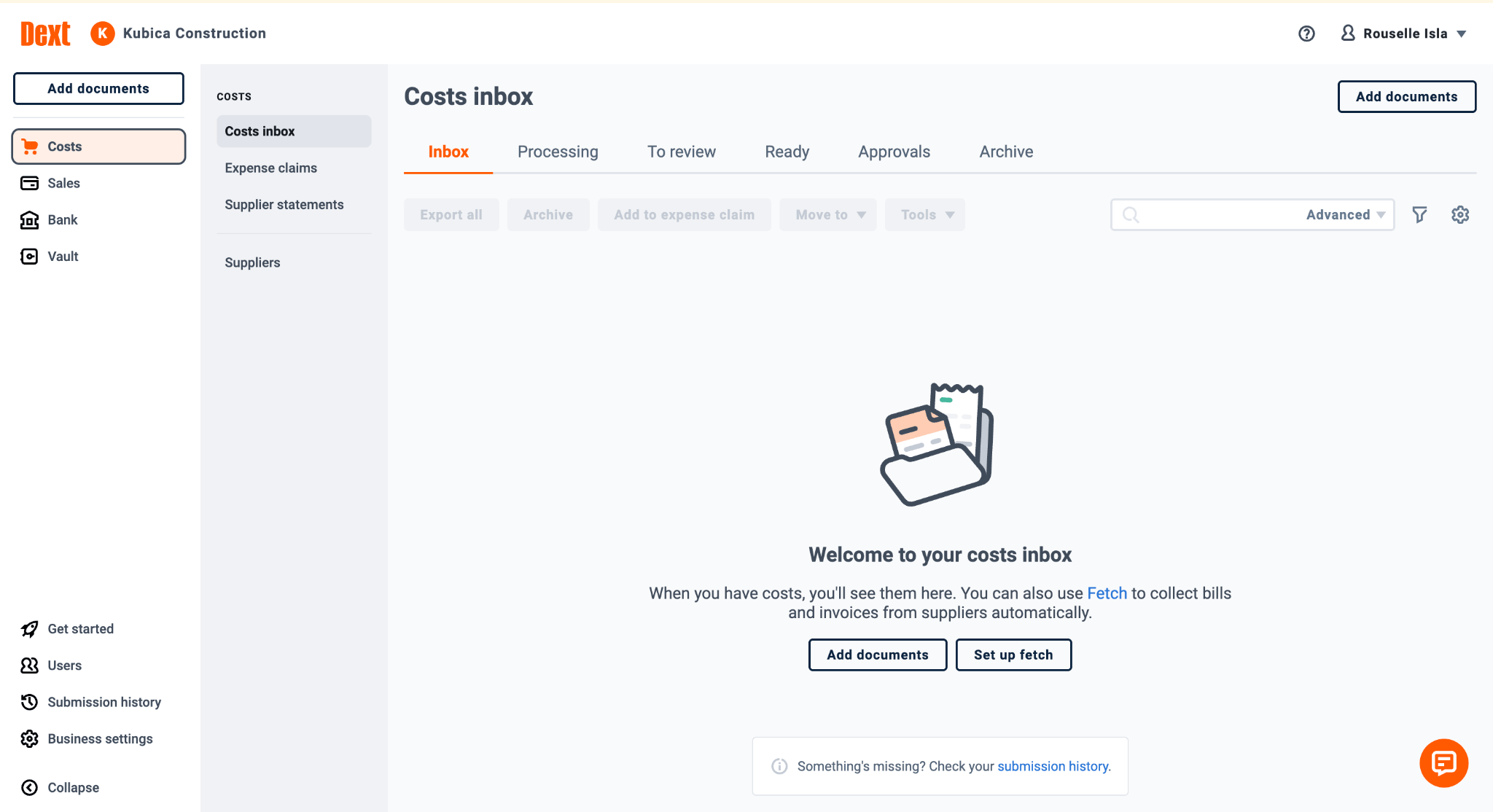
Dext solves the construction receipts problem. Material purchases and supply runs, including equipment rentals, typically get expensed from a paper slip and re-entered manually into accounting. Field workers photograph the receipt on the Dext mobile app at point of purchase.
Dext extracts the vendor, amount, date, and line items via OCR (optical character recognition). It pushes that data directly into QuickBooks, Xero, or Sage. The manual re-entry step drops out of the process entirely.
For contractors tracking construction expenses across multiple active jobs, Dext handles the materials side. It does not touch labor hours or cost code allocation.
What are Dext’s key features?
- Receipt scanning: OCR extracts vendor, amount, date, and line items from photographed receipts.
- Point-of-purchase mobile capture: Field workers photograph receipts at the lumber yard or supply house on the spot.
- Accounting sync: Extracted data pushes directly into QuickBooks, Xero, or Sage without manual re-keying
How much does Dext cost?
Dext starts at $31.50 per month for up to five users and 250 documents. New accounts include free credits for bank statement and line item extractions. A 14-day free trial is available with no credit card required.
What are the pros and cons of Dext?
Pros
- Eliminates manual data re-entry from field purchase receipts into accounting
- Mobile capture for field workers at point of purchase
- Supports QuickBooks, Xero, and Sage. No manual mapping required.
Cons
- Handles material receipt capture only; labor hours and cost code allocation require a separate tool
- No native job tagging or folder system; job cost tracking requires a QuickBooks Projects or Classes workaround after sync
Dext is best for contractors running T&M jobs who lose billable material purchases because paper receipts disappear before they reach the office.
Miter: Best for Integrated Construction Payroll with Built-in Job Costing
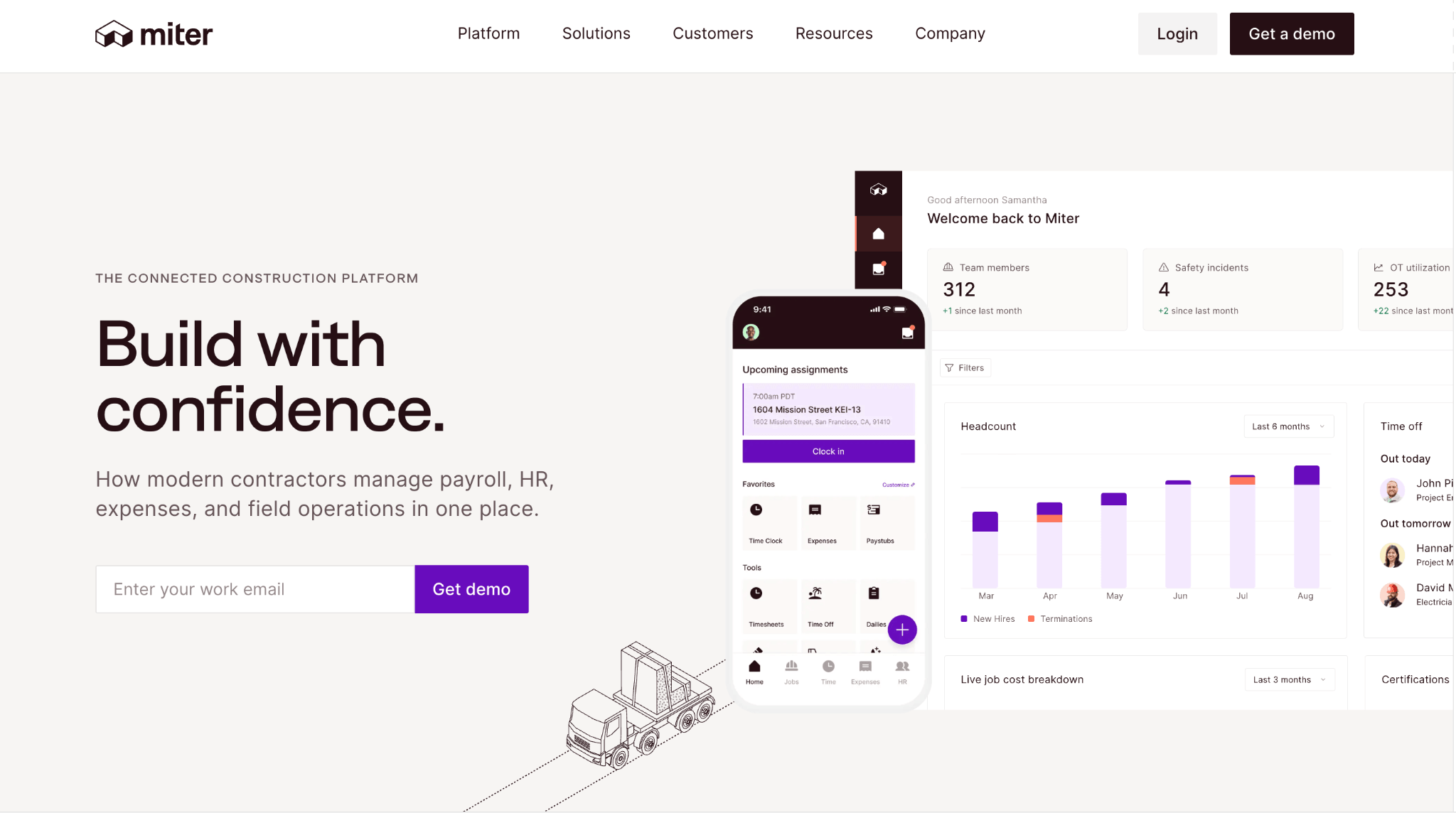
Miter is a construction payroll platform purpose-built for the trades. It handles payroll calculation, certified payroll outputs, union compliance, and multi-state tax filings in one system, without the manual transfers that separate tools require.
Its key dependency is clean upstream time data. Payroll accuracy in Miter is only as good as the time entries flowing into it. For contractors where payroll errors are the primary leak in job profitability, Miter closes that gap by connecting field time directly to cost code reporting and payroll output.
What are Miter’s key features?
- Unified time-to-payroll: Time entries flow directly into payroll calculation with no manual transfer between tools.
- Job and cost code level costing: Construction cost accounting allocated automatically by job and cost code.
- ERP integrations: Connects to NetSuite, Acumatica, and Sage Intacct for firms running enterprise resource planning systems.
- Compliance payroll: Covers union and certified payroll requirements out of the box.
How much does Miter cost?
Pricing runs $15-$50/user/month, depending on modules selected. Custom quotes apply for implementation. ERP integration costs add significantly to that base figure.
What are the pros and cons of Miter?
Pros
- Eliminates manual data transfer between time tracking and payroll
- Job and cost code level accounting happens automatically
- Single source of truth from field time entry to certified payroll output
- Covers union and certified payroll requirements
Cons
- App stability issues documented across iOS and Android
- QuickBooks sync requires manual reconciliation in some workflows
- ERP implementation cost adds significantly to the base per-user price
- No direct integration with Workyard
Miter is best for construction contractors managing union or certified payroll requirements who accept higher implementation complexity for a single platform from time entry to payroll output.
Buildertrend: Best for Small GC Budget Tracking Inside a PM Tool
Buildertrend is a construction project management (PM) platform built for residential builders, remodelers, and small commercial GCs. Its budget tracking module replaces the construction cost tracking spreadsheet for most firms at this size. Job budgets are set by line item. Expenses log against them and actual-to-estimate comparison is available at any point in the job.
Buildertrend keeps construction cost management inside the same platform where the job is already being managed.
What are Buildertrend’s key features?
- Job budget tracking: Actual-to-estimate comparison by line item, updated as expenses are logged
- Bid templates: Carry forward to new estimates, reducing setup time on repeat job types
- Client portal: Owners see a cost view without exposing internal margins
- QuickBooks sync: Two-way with QuickBooks Online (no web connector required) and QuickBooks Desktop (web connector required)

How much does Buildertrend cost?
Buildertrend pricing is quote-based on annual construction volume. Contact Buildertrend for a quote based on annual construction volume.
What are the pros and cons of Buildertrend?
Pros
- Job cost visibility without a separate accounting integration
- Client transparency built in (owners see costs without exposing margins)
- Faster estimating on repeat job types through reusable bid templates
Cons
- Mobile app available on iOS and Android; no GPS-verified clock-in
- Better for post-job review than live labor cost visibility
- No direct field-to-accounting labor data feed; time entries require manual input or a separate integration
Buildertrend is best for residential builders and small remodeling GCs who need a construction budget app for project tracking and client cost transparency in one place.
BILL: Best for AP automation and vendor payments
BILL (bill.com) is a spend management and accounts payable (AP) platform. It is built for contractors managing high subcontractor volume and vendor invoice workflows. For firms processing dozens of invoices weekly, BILL automates invoice capture and the approval-to-payment cycle.
Vendor invoices come in, get routed for approval based on configurable thresholds, and go to payment without manual handling. BILL serves back-office finance teams only. It has no field crew capability and no GPS clock-in.
What are BILL’s key features?
- Invoice capture and routing: Captures invoices via email or scan, extracts data automatically, and routes for approval before payment
- Approval thresholds: Configurable rules route invoices above a set amount to a project manager before payment clears
- Accounting sync: Two-way sync with QuickBooks, Xero, NetSuite, Sage Intacct, and Microsoft Dynamics

How much does BILL cost?
BILL’s Accounts Payable & Receivable plans start at $49/user/month (Essentials), $65/user/month (Team), and $89/user/month (Corporate). Enterprise pricing is custom.
What are the pros and cons of BILL?
Pros
- Automates the full AP cycle from invoice capture to payment
- Configurable approval workflows before funds leave the account
- Syncs with major accounting platforms without manual entry
Cons
- No native job costing; expenses code manually in QuickBooks after sync
- No native construction ERP integration; Sage, Foundation, and Viewpoint require CSV exports
- Back-office only; no field crew workflows or GPS capability
BILL is best for contractors whose primary expense management problem is vendor invoice processing and subcontractor payment automation, not labor hour accuracy.
Emburse: Best for Employee Reimbursements and Receipt Capture
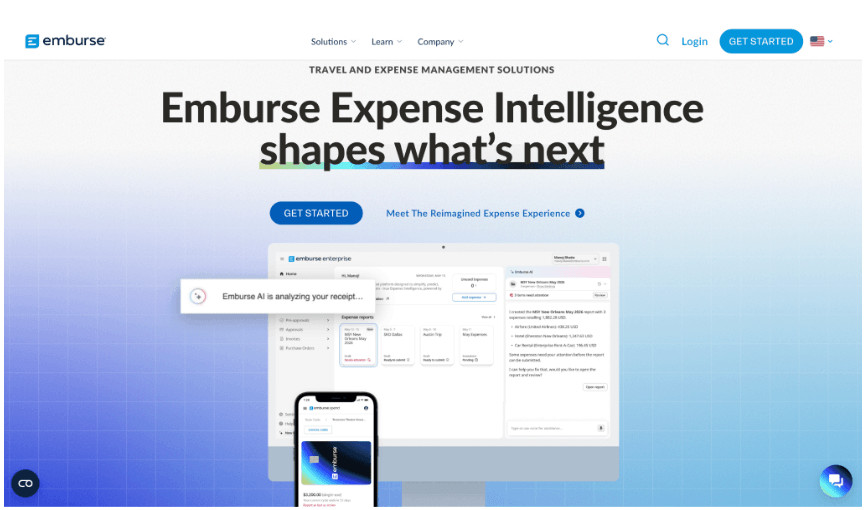
Emburse is an expense management platform that handles the employee reimbursement side of tracking construction expenses. Crew members submit out-of-pocket job purchases for repayment directly in Emburse. Field workers submit receipts via mobile; Emburse matches them against a company card or pre-approved budget.
For firms managing petty cash, per diems, or frequent small field purchases, Emburse cuts the administrative cycle from submission to payout. It is not a contractor expense tracker for labor hours or job cost allocation.
What are Emburse’s key features?
- Mobile receipt capture: Field workers photograph and submit receipts via smartphone at the point of purchase
- Reimbursement workflow: Submission-to-payout tracking with configurable approval steps and policy enforcement
- Project spend tracking: Expenses can be tagged by project, client, or cost center for spend analysis
How much does Emburse cost?
Pricing is quote-based. Contact the sales team or schedule a demo to get a figure for your team size and requirements.
What are the pros and cons of Emburse?
Pros
- Eliminates manual receipt collection and reimbursement processing
- Configurable approval policies reduce unauthorized spend before reimbursement clears
- Project-level spend tagging for cost center visibility
Cons
- Addresses reimbursable expenses, not labor cost allocation
- Project tagging is a spend analysis feature, not construction job cost coding
- No native integration with construction-specific ERPs like Sage or Foundation
Emburse is best for construction firms where field crew reimbursements and petty cash management are a documented burden, and where a separate time tracking solution already handles labor cost allocation.
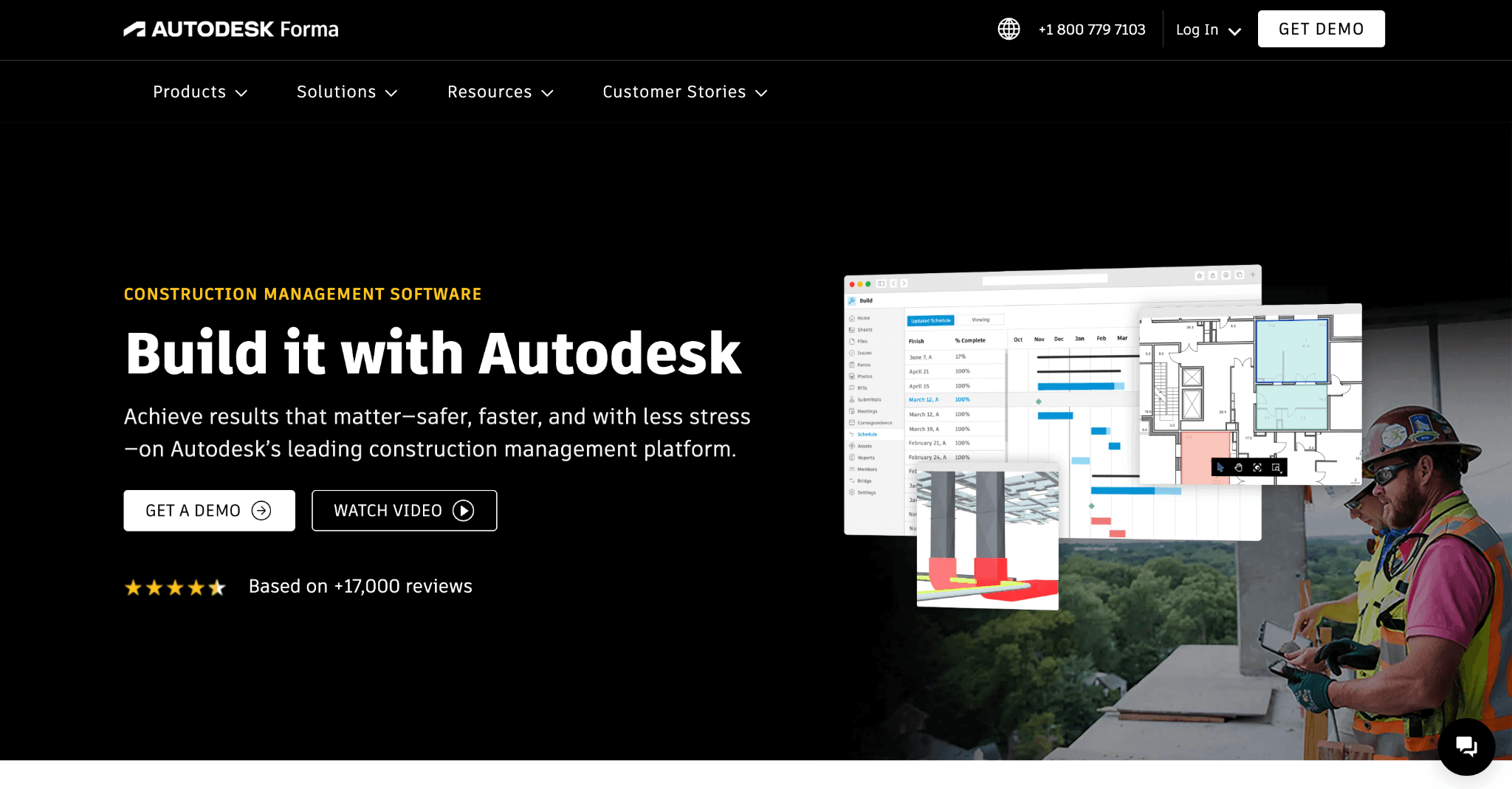
Autodesk Construction Cloud: Best for Large GCs Managing Project-level Cost Control
Autodesk Construction Cloud (ACC) is a project management platform used primarily by GCs (general contractors) on large commercial projects. For these firms, construction cost management software means tracking committed subcontracts, purchase orders, and change orders. It is not about individual field labor hours.
The cost management module tracks actual spend against an original estimate in real time. For GCs managing multiple large commercial projects simultaneously, that commitment visibility is the primary financial control tool.
What are Autodesk Construction Cloud’s key features?
- Budget tracking: Committed costs, pending change orders, and actual spend tracked against the original project estimate
- Commitment log: Flags variance between budgeted and committed costs before a phase closes
- Accounting integration: Syncs with Sage, Viewpoint, and JD Edwards; does not include QuickBooks
How much does Autodesk Construction Cloud cost?
Autodesk Build pricing is not published. Contact Autodesk sales for a quote. An unlimited user plan is also available for enterprise teams.
What are the pros and cons of Autodesk Construction Cloud?
Pros
- Catches cost overruns while there is still time to act on them
- Real-time budget tracking against the original project estimate
- Native integration with Sage, Viewpoint, and JD Edwards
Cons
- Setup requires dedicated operations staff most small contractors don’t have
- Cost management is PM-facing; not designed for field crew expense entry
- Mismatched for small and mid-size contractors by cost and complexity
Autodesk Construction Cloud is best for GCs managing multiple large commercial projects where change order cost control and commitment tracking are the primary financial challenges.
Beam: Best for residential contractors managing finances and expenses in one platform
Beam is a construction finance and project management platform built for home builders, remodelers, and trade contractors. It combines estimating, invoicing, expense management, job costing, and bill payment in one system, with a QuickBooks Online two-way sync for firms that want to keep their existing accounting setup.
Beam issues the Beam Card, a Visa charge card that notifies cardholders to upload a receipt after every purchase. Each expense auto-categorizes by project and cost code inside Beam’s project accounting.
What are Beam’s key features?
- Beam Card: Visa charge card with 1% cash back; cardholders are notified to upload receipts after each purchase, with expenses auto-assigned to project and cost code.
- Job costing: Bills, expenses, subcontracts, and time entries categorized by cost code with estimate vs. actuals comparison.
- QuickBooks Online sync: Two-way integration; data flows between Beam and QBO without manual re-entry.

How much does Beam cost?
- Core: Free
- Plus: $250/month (or $200/month billed annually)
- Scale: $500/month (or $400/month billed annually)
A 14-day free trial is included with no credit card needed.
What are the pros and cons of Beam?
Pros
- Free Core plan with expense management and Beam Card
- Receipt capture and cost code assignment at point of purchase
- No separate accounting integration required for residential firms on QuickBooks Online
Cons
- QuickBooks Online only; no Desktop, Sage, or other integrations
- Built for residential and light commercial contractors only
- Job costing requires the Plus plan or above
Beam is best for residential builders, remodelers, and trade contractors who want receipt capture, job costing, and invoicing in one platform with a free starting tier.
How to Choose the Best Construction Expense Management Tool for Your Company Size
Choosing the right expense management software for construction starts with understanding what kind of problem you’re actually solving. We scored every tool in this article on these seven factors. These are the same criteria any construction expense management buyer should apply.
Matching the Right Tool to Your Crew Size and Cost Structure
Start by assessing each construction expense management tool against seven criteria. Most tools do well on two or three. The ones that matter most depend on where your biggest gap is.
Job costing depth. Can the tool allocate expenses to specific jobs, phases, or cost codes automatically? Construction job costing only works if expenses land in the right bucket at the point of entry, not after a Friday reconciliation.
Labor cost capture. Does it tie field worker hours to job costs, or require manual entry? GPS-verified clock-in that fires a cost code rule at the moment of punch is the only method that removes the transcription error entirely.
Accounting integration. How cleanly does data flow into QuickBooks or Sage? One-click sync or CSV workaround? The difference between the two is usually hours of manual reconciliation per pay period.
Receipt and material tracking. Can field workers capture receipts on mobile, tied to a specific job? On T&M jobs, a receipt without a job number attached is a billable cost that disappears.
Construction-specificity. Was it built for contractors, or is construction an afterthought on a generic platform? Construction-specific tools understand cost codes and certified payroll by default. Generic tools require workarounds.
Mobile usability for field crews. Field workers will not use a tool that requires a laptop or lengthy training. Poor mobile usability is the most common reason construction expense management fails in the field. A construction expense tracking app that requires a desktop setup defeats the purpose for field crews.
Pricing at scale. Per-user costs compound quickly on a crew of 20 or more. Some tools are priced for back-office users only. Others charge per field worker, which changes the math significantly at scale.
Best Construction Expense Management Tool by Use Case
For crews under 25 workers, a GPS time clock closes the biggest gap. Construction expense management at this size usually means one person re-entering hours from paper cards every Friday. Fixing that produces an immediate reduction in payroll errors. Receipt management is secondary at this scale.
For crews between 25 and 100 workers, two tools are usually needed: one for labor, one for receipts. Labor tracking alone isn’t enough. Job costing accuracy across multiple active jobs requires cost code allocation that happens automatically at clock-in. Budget-versus-actual visibility before a job closes matters too. Expense management in construction at this crew size rarely works with one tool.
That points toward Workyard for labor data, paired with a configured QuickBooks job costing setup. Add Miter if payroll integration is the priority. Buildertrend fits if project budget tracking is the primary need.
For GCs over 100 workers, the answer is Autodesk Construction Cloud. The problem at this scale shifts to commitment tracking: signed subcontracts, purchase orders, and change orders that need to reconcile against a construction budget.
What counts as a construction expense and how to track it?
Direct costs include labor (wages, benefits, burden), materials, subcontractor payments, and equipment rental. These link directly to a specific project. They’re tracked through the job cost accounting module or purpose-built construction cost management software.
Paper-based tracking organizes these categories by category, not by job. A project expense tracker does the same thing digitally, with job-level cost allocation built in.
Each cost must link to a job number before it reaches the general ledger. A construction expense report template cannot automatically allocate hours to the correct cost code.
Overhead costs (safety equipment, software, insurance) allocate across jobs at a rate, not a direct job assignment. Construction accounting software handles this differently from field time tracking tools. Confirm with your accountant how overhead is currently allocated before assuming a new tool will handle it the same way.
GPS-verified time entry is the tracking method that matters most for direct labor costs. Construction cost tracking at the phase or cost code level only works if the original time entry is accurate.
Without GPS verification, labor hours arrive from memory or paper. Cost code allocation then depends entirely on whoever transcribed the time card getting it right. That’s where construction expense management breaks down at the field level.
Recovering Cost Without Cutting Scope
Recovering untracked labor is the most overlooked opportunity in construction expense management. On T&M jobs, that means logging travel time and material runs that crews work but never bill. Fixed-price jobs have a different version: cost code misallocations that go undetected until after the job closes. Future estimates built on that data inherit the same errors.
Workyard addresses labor recovery through GPS-verified time capture, including travel between sites. Miter handles labor cost allocation to job phases from a single time entry. Dext covers receipt capture at point of purchase. BILL handles vendor invoice automation.
The contractors who bid most accurately know what their last job actually cost. That knowledge lives in the data. Accurate capture is what makes it usable.
The gap most contractors leave open is the one they stop noticing because they’ve worked around it for years. Getting both sides right usually takes two tools. The ones who know that tend to bid more accurately, close jobs closer to budget, and build estimates from data they actually trust.
FAQs
How do you manage construction expenses effectively?
Separate the labor problem from the materials problem. Labor is typically 40–60% of project cost. It requires GPS-verified time tracking allocated to cost codes at clock-in, not manual entry after the fact. Materials require receipt capture at the point of purchase, tied to a specific job number.
Good expense management in construction works best with two specialized tools. Use a construction expense tracker for materials and receipts, and a GPS time clock for labor hours.
What is the $2,500 expense rule, and does it apply to construction?
Yes. The $2,500 de minimis safe harbor lets businesses expense items costing $2,500 or less immediately rather than capitalizing them. For construction, this applies to small tools and supplies purchased per job. Items above $2,500 may need to be capitalized and depreciated.
Confirm the specific treatment with your CPA, as rules differ for taxpayers with applicable financial statements.
What are the five types of construction costs?
Most construction expense management systems organize around direct labor, materials, subcontractor costs, and equipment overhead.
Direct labor is the most frequently miscoded. Hours reach payroll tied to the wrong job or phase because time cards are manual processes. Tracking construction costs accurately at this level requires GPS-verified time entry, not paper cards.
What are the four types of overhead in construction?
G&A overhead covers office staff and software. Project overhead covers site supervision and temporary facilities. Indirect labor captures non-billable time including travel between sites. Equipment overhead covers depreciation and maintenance on owned equipment.
The allocation method for each type affects your job cost reports directly. Overhead allocated by labor hour produces different results than overhead by revenue percentage.
What are the five rules of cost control in construction?
Establish a budget before the job starts. Allocate actual costs to the correct cost codes in real time, not at month-end. Flag variances above a set threshold for project manager review before the phase closes. Compare actual-to-estimate at each phase, not only at project completion. Use final job cost data to calibrate the next estimate.
For most small contractors, the third rule is where things break: variances go unreviewed until the job is 90% complete.
What are the four cost principles contractors should follow?
Allocable means the cost directly ties to a specific contract. Allowable means the law or contract terms don’t prohibit it. Reasonable means a prudent contractor would pay that amount. Consistently treated means the same cost categories run the same way across every job.
These four criteria matter most on public works contracts. Project expense reports organized this way hold up to audit scrutiny.
What are the five project controls, and how do they connect to expense tracking?
The five project controls are scope, schedule, cost, quality, and risk management. Construction expense management software connects to one of them: cost management. That connection only holds when field data is accurate.
Construction cost tracking built on manually re-entered time data produces wrong reports by design. A construction cost tracker is only as reliable as its field data.
What construction costs can be expensed for tax purposes?
Ordinary and necessary business expenses are generally deductible. This includes materials, subcontractor payments, and labor, plus equipment rental. Jobsite costs like temporary utilities typically qualify, too. The specific deductibility and timing depend on your accounting method.
A contractor accounting system that categorizes costs at the point of purchase produces cleaner records and a stronger audit trail at year-end.
What is the 70/20/10 budget rule, and does it apply to construction?
No. The 70/20/10 rule is a personal finance guideline. It does not translate to construction project budgeting. A residential single-family project might allocate 35–45% to labor, 30–40% to materials, and 10–15% to subcontractors and overhead. Those percentages shift by project type and contract structure.
Use your own historical job cost data to set allocation targets rather than a generic personal finance ratio.
What is the most common financial mistake contractors make on jobs?
Discovering cost overruns after the job closes, when nothing can be corrected. The root cause is usually the same. Cost codes get allocated wrong in the field. Errors compound through the payroll cycle. The job cost report doesn’t get reviewed until the job is invoiced and done.
GPS-verified time entry that allocates hours to cost codes at clock-in is the fix. It makes the report accurate in time to act on it.
Sources:
- Workyard / Analysis of 280 contractor discovery calls – Finding that 45% of construction businesses manually re-enter time data. 2026.
- Workyard customer quote (Property management, general manager) – job costing accuracy and 30% year-over-year increase in client reimbursements. 2026.
- Workyard customer quote (Property management, director) – $12,000/year saved in payroll admin after switching to Workyard / 2026 / workyard.com
- U.S. Bureau of Labor Statistics. “Construction Labor Productivity Highlights.” https://www.bls.gov/productivity/highlights/construction-labor-productivity.htm. 2025.
- Internal Revenue Service. “Tangible Property Final Regulations.” https://www.irs.gov/businesses/small-businesses-self-employed/tangible-property-final-regulations. Updated 2024.
Author bio: Rouselle Isla writes about construction tech and financial tools at Workyard, helping contractors get a clearer picture of their expenses and protect their bottom line.